Threshold Alerts & Toast Notifications
LocalTelemetry features a proactive alert engine designed to warn you whenever temperatures, power draw, memory limits, or bandwidth consumption exceed your safety thresholds.
Alert Delivery Mechanisms
When a hardware metric crosses an enabled threshold, LocalTelemetry dispatches warnings through two configurable channels:
- Visual Taskbar Flashing: The affected metric label and value on the taskbar overlay flash with a translucent orange warning tint (
rgba(255, 80, 0, 0.24)). This notifies you instantly without opening windows or stealing focus. - Desktop Toast Notifications: An animated toast notification slides in near the bottom-right corner of your screen via the out-of-process notification helper (
LocalTelemetry.Notifier.exe).
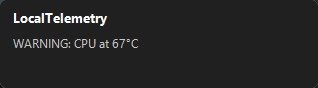 Non-intrusive desktop toast alert notifying about elevated hardware temperature.
Anti-Focus-Stealing Architecture
Desktop toast popups are handled by a dedicated standalone process (LocalTelemetry.Notifier.exe) communicating with the main application via named pipes.
Why is this important?
- Zero Gaming Interruptions: Standard Windows toast popups can minimize full-screen games or steal keyboard/mouse focus. LocalTelemetry's notification windows use a non-activating desktop overlay window style so toasts never take focus, minimize games, or disrupt keyboard typing.
- Isolated Animation Performance: Slide-in and fade-out animations run on a separate UI thread in the helper process, preventing frame drops in the core telemetry polling loop.
- On-Demand Process Lifecycle: The notifier helper process (
LocalTelemetry.Notifier.exe) is dynamically spawned only when threshold alerts and toast notifications are active in Settings. If alerts or toast popups are turned off, the process is automatically terminated to eliminate background RAM usage and idle thread overhead.
Technical Implementation
To inspect the asynchronous Named Pipe IPC protocol, notification packet serialization, and WS_EX_NOACTIVATE window styling, see the Notifier & Named Pipe IPC developer guide.
Configurable Hardware Thresholds
In Settings -> Alerts, switch on Enable Threshold Alerts to customize sensor limits.
Automatic Safety Defaults
When you enable alerts without active selections, LocalTelemetry enables three sensible defaults automatically:
- CPU Temp: Enabled at 90°C.
- RAM Usage: Enabled at 90%.
- GPU Temp: Enabled at 85°C.
You can adjust or disable these defaults at any time.
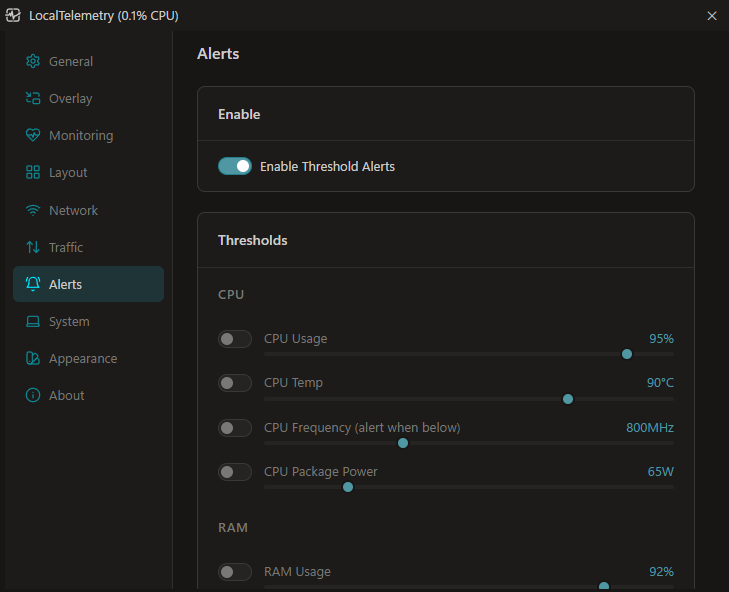 Alerts configuration tab for setting hardware limits, bandwidth quotas, and delivery options.
CPU Alerts
- CPU Usage: Alerts when total processor utilization exceeds the specified limit (
50%to100%). - CPU Temp: Alerts when package temperature exceeds safe thresholds (
60°Cto100°C). - CPU Frequency: Low-threshold warning that triggers when core clock speed drops below the minimum target (
200 MHzto2000 MHz) due to thermal or power throttling. - CPU Package Power: Alerts when package power draw exceeds the wattage limit (
20 Wto250 W).
RAM Alerts
- RAM Usage: Alerts when total system memory utilization exceeds the configured limit (
50%to100%).
GPU Alerts
- GPU Usage: Alerts when graphics core load exceeds the specified threshold (
50%to100%). - GPU VRAM Usage: Alerts when dedicated video memory consumption exceeds the limit (
1,024 MBto32,768 MB). - GPU Temp: Alerts when GPU core temperature exceeds the safety threshold (
60°Cto100°C). - GPU Frequency: Low-threshold warning that triggers when GPU core clocks drop below the minimum target (
100 MHzto2000 MHz) due to graphics throttling. - GPU Power: Alerts when total board power draw exceeds the wattage threshold (
20 Wto400 W).
Network Bandwidth Quotas
- Daily Internet Usage: Alerts when total transferred data across the active network adapter exceeds your daily budget (
5 GBto500 GB). - Monthly Internet Usage: Alerts when cumulative monthly data transfer crosses your ISP bandwidth cap (
100 GBto5,000 GB).
Battery Alerts
Hardware Dependency
The Battery alert section appears only on systems with a detected battery (hasBattery). Desktop computers automatically hide this section.
- Battery Low: Alerts when laptop battery charge drops below the warning level (
5%to50%) while actively discharging. Warnings are automatically suppressed while connected to AC power.
Alert Actions & Cooldown Controls
Under the Actions section in Settings -> Alerts, you can fine-tune notification behavior:
- Show Tray Notification: Toggles desktop toast popup notifications on or off.
- Flash Overlay Briefly: Toggles in-place visual flashing on the taskbar overlay.
- Cooldown between alerts: Configures the delay before repeat notifications are sent for the same sensor (
5 sto120 s, default:60 s). - Only fire once per session (ignores cooldown): Ignores cooldown and fires an alert only once per application run until LocalTelemetry is restarted.