Installation & Requirements
This page details system requirements, installation methods, administrative driver permissions, update procedures, and clean uninstallation for LocalTelemetry.
System Requirements
| Requirement | Minimum Specification | Recommended Specification |
|---|---|---|
| Operating System | Windows 10 (64-bit, v2004+ / build 19041) | Windows 11 (64-bit, v22H2 or newer) |
| Architecture | x86-64 / AMD64 (x64 compatible) | x86-64 / AMD64 (Intel or AMD) |
| Permissions | Administrator (UAC) (required for hardware sensor driver) | Administrator (UAC) (silent boot via Task Scheduler) |
| System RAM | 2 GB (Windows 10) / 4 GB (Windows 11) | 8 GB or higher |
| App Footprint | ~40-50 MB RAM (minimized overlay) / ~100-150 MB (Settings UI) | ~40-50 MB RAM |
| Disk Space | ~70 MB initial footprint (37 MB installation folder + ~30 MB WebView2 user cache) | 100 MB+ (recommended for long-term traffic history & logs) |
| .NET Runtime | Microsoft .NET 10 Desktop Runtime (x64) | .NET 10 Desktop Runtime (Auto-downloaded by installer) |
| UI Runtime | Microsoft Edge WebView2 Runtime | WebView2 Runtime (Pre-installed on Windows 11) |
| Hardware Driver | PawnIO Kernel Driver (bundled with app, ~3.4 MB) | PawnIO Kernel Driver (installed automatically offline) |
Baseline OS & Hardware Specifications
In accordance with official Microsoft Windows 11 Specifications and Windows Hardware Driver Documentation:
- Processor: 1 GHz or faster with 2 or more cores on a compatible 64-bit x86-64 / AMD64 processor (Intel or AMD).
- System Memory: Minimum 2 GB on 64-bit Windows 10, or 4 GB on Windows 11. LocalTelemetry maintains an ultralight footprint of ~40-50 MB RAM during background taskbar monitoring.
- Storage Footprint: Minimum ~70 MB initial disk space across the installation directory (37 MB in
C:\Program Files\LocalTelemetry, as reported in Windows Installed apps) and user profile cache (~30 MB in%LOCALAPPDATA%\LocalTelemetryfor WebView2 runtime cache, settings, and logs). Portable mode requires ~34 MB on extraction and expands to ~65 MB once the local WebView2 settings cache is generated. 100 MB or more of free disk space is recommended for long-term network usage history and log files. - System Firmware: UEFI with Secure Boot capability and TPM 2.0 (standard Windows 11 hardware baseline; LocalTelemetry operates seamlessly with Secure Boot enabled).
- Display & Taskbar: Standard Windows taskbar with support for primary or secondary display positioning at any scaling factor (100%-200% DPI).
- Graphics Subsystem: DirectX 11 / 12 compatible GPU with WDDM 2.0+ display driver (for GPU telemetry via
D3DKMTQueryStatisticsor vendor APIs NVML / ADL / ControlLib).
WARNING
Unsupported Architectures: 32-bit (x86) Windows editions and ARM processors (such as Qualcomm Snapdragon X Elite, Snapdragon Plus, Surface Pro X, etc.) are not supported. Under 64-bit Windows, kernel-mode drivers cannot run under emulation and must execute natively on x86-64 hardware.
Installation Methods
Method 1: Standard Inno Setup Installer (Recommended)
- Download
LocalTelemetrySetup.exefrom the latest GitHub Releases. - Run the installer executable (Windows will present a standard UAC prompt for Administrator rights).
- Automatic .NET 10 Runtime Download: Because .NET 10 is a modern runtime that is not pre-installed on most Windows PCs, the installer will automatically detect its absence, download the official .NET 10 Desktop Runtime from Microsoft (~55 MB), and install it silently in the background.
- Choose your preferred installation directory (Default:
C:\Program Files\LocalTelemetry). - Select your desired tasks:
- Create a Start Menu shortcut
- Create a Desktop shortcut
- Run LocalTelemetry at Windows startup (registers a Windows Task Scheduler job with elevated rights)
- Click Install:
- Application binaries and the uninstaller are installed to
C:\Program Files\LocalTelemetry(~37 MB total, as reported in Windows Installed apps). - The bundled PawnIO kernel sensor driver (~3.4 MB) is registered and started silently offline without external downloads.
- An
app.modemarker file (standard) is created in the installation folder. LocalTelemetry detects this file and routes configuration (settings.json), traffic history (internet_usage.jsonl), diagnostic logs, and WebView2 runtime cache (webview2_data/, ~30 MB) to%LOCALAPPDATA%\LocalTelemetry. - Upon completion, LocalTelemetry launches automatically, opening the Settings dashboard and placing an icon in your System Tray.
- Application binaries and the uninstaller are installed to
IMPORTANT
Internet Connection for First-Time Setup: Because most users will not have the .NET 10 Desktop Runtime installed, an active internet connection is required during initial setup so the installer can fetch the runtime package. Once installed, all subsequent launches, driver initialization, and telemetry operations run completely offline.
Method 2: Windows Package Manager (WinGet)
Install via WinGet:
winget install --id Nicconike.LocalTelemetryMethod 3: Scoop Package Manager (Direct Repository Bucket)
Install directly from the GitHub repository via Scoop:
# Add repository as a bucket and install
scoop bucket add localtelemetry https://github.com/Nicconike/LocalTelemetry
scoop install localtelemetry
To update LocalTelemetry to the latest release at any time:
scoop update localtelemetryMethod 4: Portable ZIP (Zero Installation)
- Install Prerequisites: Because portable mode does not include an installation wizard to auto-fetch runtimes, ensure you have installed:
- Microsoft .NET 10 Desktop Runtime (x64)
- Microsoft WebView2 Runtime (Included by default on Windows 11)
- Download
LocalTelemetry-win-x64.zipfrom GitHub Releases (~10 MB archive). - Extract the ZIP archive into any folder of your choice (e.g.
D:\Software\LocalTelemetry). The extracted application requires ~34 MB of disk space. - Run
LocalTelemetry.exeas Administrator.
NOTE
In portable mode (when no app.mode file exists in the executable folder), all configuration (settings.json), network usage history (internet_usage.jsonl), diagnostic logs, and the WebView2 runtime cache (webview2_data/, ~30 MB) are stored directly inside the extracted folder alongside LocalTelemetry.exe (~65 MB total once launched). The bundled PawnIO kernel sensor driver initializes silently on first elevated launch.
Verifying Downloaded Binaries (Cosign & SLSA)
Every release includes cryptographic checksums, Sigstore Cosign signature bundles, and SLSA provenance attestations:
# 1. Compare the SHA-256 hashes against checksums.txt
Get-FileHash .\LocalTelemetrySetup.exe, .\LocalTelemetry-win-x64.zip -Algorithm SHA256

# 2. Verify keyless signatures with Cosign
cosign verify-blob --bundle .\LocalTelemetrySetup.exe.sigstore.json `
    --certificate-identity-regexp "https://github.com/Nicconike/LocalTelemetry/.*" `
    --certificate-oidc-issuer "https://token.actions.githubusercontent.com" `
    .\LocalTelemetrySetup.exe

# 3. Verify SLSA build provenance attestations
gh attestation verify .\LocalTelemetrySetup.exe --repo Nicconike/LocalTelemetry
gh attestation verify .\LocalTelemetry-win-x64.zip --repo Nicconike/LocalTelemetry
Administrator Rights & UAC Explained
Why does LocalTelemetry need Administrator rights?
To read low-level hardware sensors (such as CPU package temperatures, MSR clock registers, and RAPL power consumption), Windows requires direct communication with kernel-level driver interfaces (via PawnIO). Standard user accounts cannot read these low-level hardware registers directly due to Windows operating system security boundaries.
Sensor Privilege Breakdown
LocalTelemetry requires Administrator privileges to load the PawnIO kernel driver for direct processor MSR and SMU access:
| Hardware Metric | Elevated (Default) | Unelevated | Underlying Mechanism |
|---|---|---|---|
| CPU Usage (%) | Windows system time counters | ||
| RAM Usage (% & GB) | Windows memory status subsystem | ||
| Disk Read / Write Speeds | Windows Performance Data Helper counters | ||
| Network Speeds & Traffic | Windows network interface subsystem | ||
| Battery Level & Charge Rate | Windows system power status & battery telemetry | ||
| GPU Telemetry (Usage, VRAM) | Vendor display libraries (NVML, ADL, ControlLib) or WDDM graphics | ||
| CPU Package & Core Temp | Direct CPU temperature registers or SMU (via PawnIO driver) | ||
| CPU Hardware Clocks | High-precision CPU core clock registers (via PawnIO driver) | ||
| CPU Package Power (Watts) | CPU package energy telemetry (RAPL / SMU via PawnIO driver) |
How does elevation and driver initialization work?
- UAC Elevation Prompt: Whenever you manually start LocalTelemetry, Windows displays a standard User Account Control (UAC) prompt to grant administrative privileges for kernel sensor drivers.
- Silent Driver Setup: LocalTelemetry verifies that the
PawnIOhardware driver is present. If missing, it installs the driver silently in the background using the elevated process permissions. - Settings & Tray Launch: Once hardware sensors are initialized, the Settings dashboard opens on screen and the tray icon appears in the notification area.
How does "Start with Windows" avoid UAC prompts on reboot?
When you enable Start with Windows in Settings (or during installation), LocalTelemetry registers a scheduled task in the Windows Task Scheduler (LocalTelemetry Startup):
- Highest Administrative Privileges: Runs with full elevation to load kernel sensor drivers without presenting a UAC prompt on logon.
- Silent Launch: Launches straight into the taskbar and system tray without opening the Settings window.
- Laptop Battery Support: Configured to run seamlessly on battery power when booting or unplugging laptops.
- Infinite Runtime: Explicitly overrides the default Windows Task Scheduler 72-hour auto-termination limit, ensuring 24/7 continuous operation.
- Reliable Execution: Runs immediately even if a scheduled logon was briefly delayed.
Technical Implementation
To inspect the low-level kernel driver architecture, MSR register mappings (0x1B1, 0x1A2, 0x606), SMU PM tables, and Task Scheduler COM automation, see the Hardware Drivers Architecture developer guide.
Updating LocalTelemetry
- Installer Users: Download and run the new
LocalTelemetrySetup.exe. If an existing instance ofLocalTelemetry.exeorLocalTelemetry.Notifier.exeis running, the installer prompts to close it automatically, updates application binaries inC:\Program Files\LocalTelemetry, and preserves your existing settings and traffic history in%LOCALAPPDATA%\LocalTelemetry. - Portable Users: Extract the new portable ZIP package into your existing portable folder, replacing the old application binaries while keeping your
settings.jsonandinternet_usage.jsonlfiles intact. - In-App Update Checks: You can check for newer releases directly inside Settings -> About:
- Click Check for Updates to query the GitHub Releases API on demand.
- Set Check Frequency to
Weekly,Monthly, orManual. - Toggle Include pre-release & RC builds (disabled by default) to receive Release Candidate versions.
- When a new version is detected, click the green Download button to navigate directly to the release assets.
Uninstallation & Complete Driver Cleanup
Standard Installer Uninstallation
- Open Windows Settings -> Installed apps (or Control Panel -> Programs and Features).
- Locate LocalTelemetry and click Uninstall.
- Running Process Detection: If LocalTelemetry or its notification helper is running, the uninstaller prompts you to close the application automatically before proceeding:
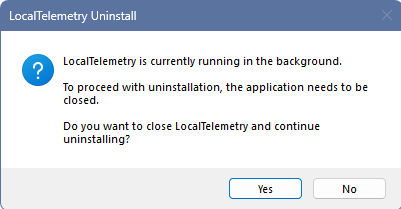 Prompt displayed if LocalTelemetry or the notification helper is active when uninstallation starts.
Complete Driver & System Cleanup:
- Shuts down running application processes and waits 2 seconds for kernel driver handles to release.
- Deletes the
LocalTelemetry Startupscheduled task from Windows Task Scheduler (schtasks.exe). - Stops and removes the
PawnIOkernel service via Windows Service Control Manager (sc.exe). - Uninstalls and removes the
pawnio.infdriver package from the Windows DriverStore usingpnputil.exe. - DriverStore Reboot Notification (Code 3010): If Windows reports that the kernel driver handle is locked in memory by the OS, a dialog informs you that a system restart is required to fully flush the driver before reinstalling.
- Cleans up PawnIO uninstallation registry keys and removes
C:\Program Files\LocalTelemetry.
User Data Removal Prompt:
- The uninstaller presents a custom cleanup dialog to select items to delete across all user profiles:
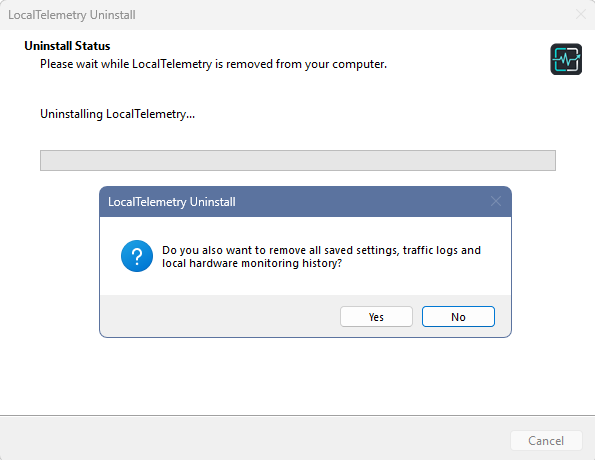 Selective cleanup dialog with independent toggles for configuration, traffic records, and diagnostic caches.
 - Application Settings (
settings.json,hardware_state.json): Checked by default. - Traffic History (
internet_usage.jsonl,internet_usage.dat): Unchecked by default to prevent accidental loss of recorded network bandwidth history. - Cache & Diagnostic Logs (
logs/,webview2_data/,temp/): Checked by default. - Remove Selected (Default button): Permanently deletes selected items. It cleans up empty data directories.
- Keep All: Preserves all data. The uninstaller displays the exact folder paths where your configuration and bandwidth database remain.
- Silent Uninstallation: In silent mode (
/SILENTor/VERYSILENT), the dialog is skipped. All user data remains safely preserved by default.
- The uninstaller presents a custom cleanup dialog to select items to delete across all user profiles:
Portable Mode Removal
To ensure no residual kernel driver, service, or temporary driver cache remains on your system when removing the portable edition:
- Close LocalTelemetry (right-click the system tray icon or taskbar overlay and click Quit).
- Right-click
Uninstall.bat(located in your portable folder) and select Run as administrator:- Automatically terminates any active
LocalTelemetry.exeorLocalTelemetry.Notifier.exeprocesses. - Stops and deletes the
PawnIOkernel service viasc stop PawnIOandsc delete PawnIO. - Forces the uninstallation and removal of the
pawnio.infdriver package from the Windows DriverStore viapnputil.exe /delete-driver /uninstall /force. - Alerts you via a Windows MessageBox if Windows requires a system restart (code
3010) to completely purge driver memory. - Removes leftover
PawnIOuninstaller registry entries fromHKLM\SOFTWARE\Microsoft\Windows\CurrentVersion\Uninstall. - Cleans up residual temporary directories (
C:\Program Files\PawnIO,%ProgramData%\LocalTelemetry, and%LocalAppData%\Temp\PawnIo).
- Automatically terminates any active
- Once the batch script displays
Cleanup complete!, delete the portable application folder from your disk.