Settings & Customization
LocalTelemetry features a modern settings interface built using Svelte 5 Runes, TypeScript, and Vite rendered inside a native Microsoft WebView2 window.
Accessing the Settings Interface
- Double-click the System Tray Icon.
- Or right-click the tray icon and choose Open Settings.
Comprehensive Settings Tabs
The settings panel is organized into 10 dedicated tabs matching the exact navigation sequence in the application:
General
- Start with Windows: Automatically launches LocalTelemetry at Windows logon using a Windows Task Scheduler task (
LocalTelemetry Startup) running with elevated rights, avoiding UAC prompts on reboot. - Show System Tray Icon: Toggle whether the application icon is displayed in the Windows notification area. When disabled, LocalTelemetry operates exclusively through the taskbar overlay. This toggle is disabled if the overlay is hidden to prevent accidental interface lockout.
- Polling Interval: Set hardware refresh speed to
0.5 s,1 s,2 s, or5 s. - Temperature Units: Toggle Show Temperatures in °F to switch between Celsius (
°C) and Fahrenheit (°F).
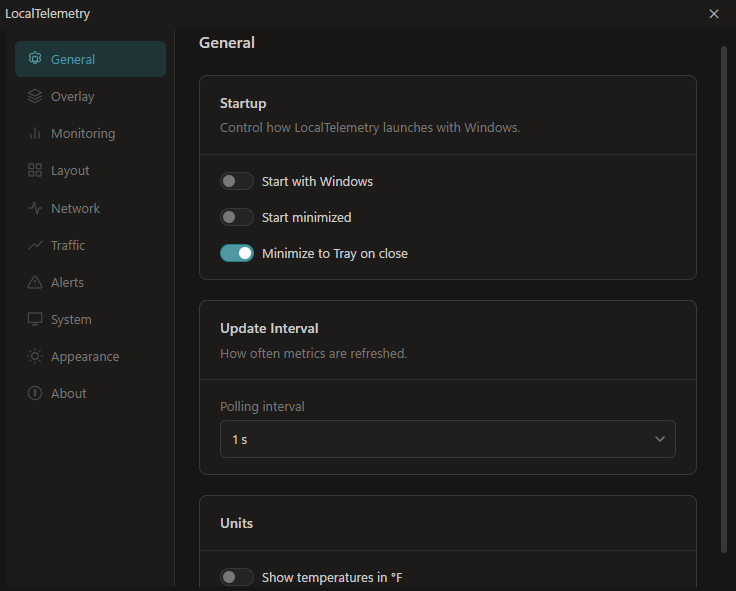 General settings tab for configuring startup behavior, sensor polling rates, and temperature units.
Overlay
- Show Overlay: Master toggle to show or hide the taskbar overlay. This toggle is disabled if the system tray icon is hidden to keep at least one entry point active.
- Position in taskbar: Adapts dynamically to Windows 11 taskbar alignment:
- Centered Taskbar: Select
Left side(near Widgets) orRight side(adjacent to notification area). - Left-Aligned Taskbar: Select
Next to Apps(placed after active app icons) orBefore System Tray.
- Centered Taskbar: Select
- Offset from Edge: Adjust horizontal pixel offset from the selected edge (
0pxto200px). - Opacity: Adjust overlay opacity (
20%to100%). - Scale: Adjust overlay scaling multiplier (
80%to200%). - Double-Click Action: Configure what happens when double-clicking the overlay (
None,Open Task Manager, orOpen Settings). - Taskbar Space Constraint Banner: Warns when the available taskbar slot is narrower than the overlay. LocalTelemetry scales down and clamps coordinates to prevent overlap. Includes a button to open Windows Taskbar Settings (
ms-settings:taskbar) to hide Windows Widgets.
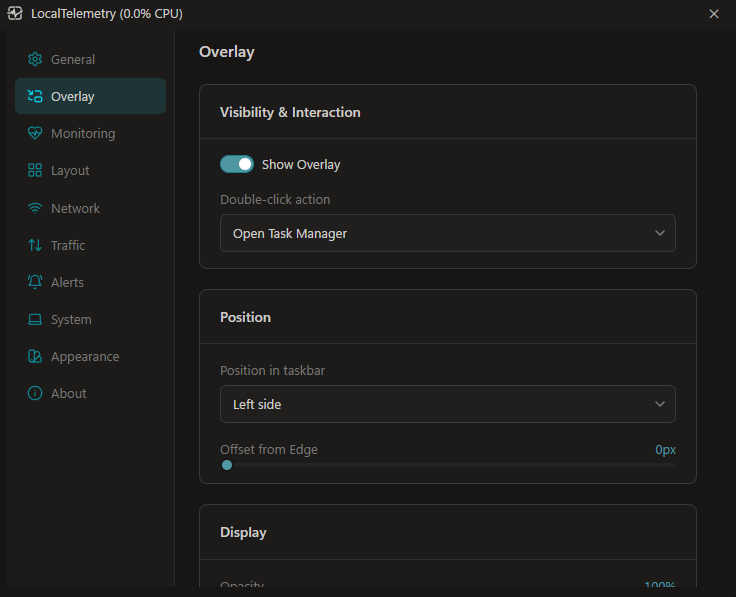 Overlay settings tab for configuring taskbar placement, edge offset, opacity, scaling, and double-click behavior.
Monitoring
- Active Trackers: Toggle individual hardware polling components on or off (CPU, GPU, RAM, Network, Disk, and Battery on portable devices). Toggling off an unused component completely halts its background polling loop and driver queries to eliminate unnecessary CPU wakeups.
- CPU Monitoring Mode:
- Clock Mode: Choose between
Average(mean clock frequency across all active cores) orMax Active Core(highest clocked core frequency). - Usage Source: Choose between
Overall (Task Manager)(average system-wide load) orMax Thread (Gaming)(highest loaded thread, ideal for spotting single-core bottlenecks).
- Clock Mode: Choose between
- GPU Usage Source: Choose between
Driver (NVML/ADL)(vendor driver engine load matching MSI Afterburner) orWDDM (Task Manager)(Windows display driver model engine statistics). - Metrics Logging: Master toggle to log periodic sensor telemetry to daily log files (
lt_DD-MM-YYYY.log). - Per-Category Log Modes: Configure logging detail (
Off,Errors,Full) independently for each hardware component. - System Logging: Sets diagnostic logging verbosity written to
lt_system.log(Off,Error,Warning,Info,Debug). Set toDebugonly when troubleshooting hardware issues.
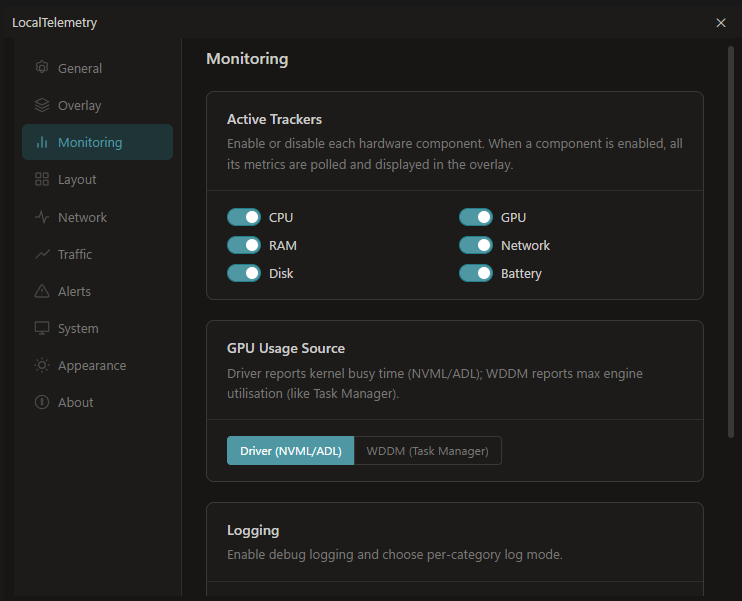 Monitoring settings tab for enabling individual hardware sensor categories, calculation modes, and metric logging.
Layout
- Metric Drag-and-Drop Ordering: Drag metrics (or use the up/down arrows) to change the exact column sequence on the taskbar overlay.
- Add / Remove Metrics: Select which hardware metrics are displayed on the overlay (such as NVMe disk I/O, laptop battery status, package wattage, and core clocks) or remove unneeded sensors. Battery metrics are automatically hidden on desktop computers without a battery.
- Reset Layout to Defaults: Click the Reset Layout to Defaults button to instantly restore the standard 5-column default layout (CPU Usage & Temp, GPU Usage & Temp, GPU VRAM & Total Transferred, RAM Usage & Used, and Download & Upload speeds).
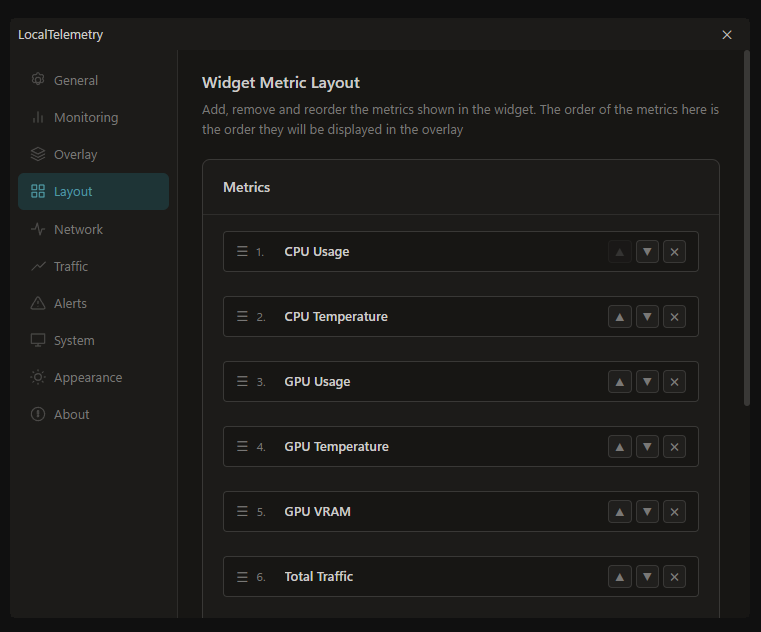 Layout configuration tab for reordering and selecting hardware metrics.
 Resulting customized taskbar overlay displaying active NVMe disk throughput and battery vitals alongside core metrics.
Network
- Show Speed in Bits/s: Toggle displaying network download and upload throughput in bits per second (
b/s,Kb/s,Mb/s,Gb/s) instead of bytes per second (B/s,KB/s,MB/s,GB/s). - Network Adapter: Select which network adapter is used for throughput monitoring (
Auto (Best Match)or a specific physical adapter likeEthernet/Wi-Fi). - Traffic History: Toggle Record Daily Traffic History to record upload and download totals into
internet_usage.jsonl.
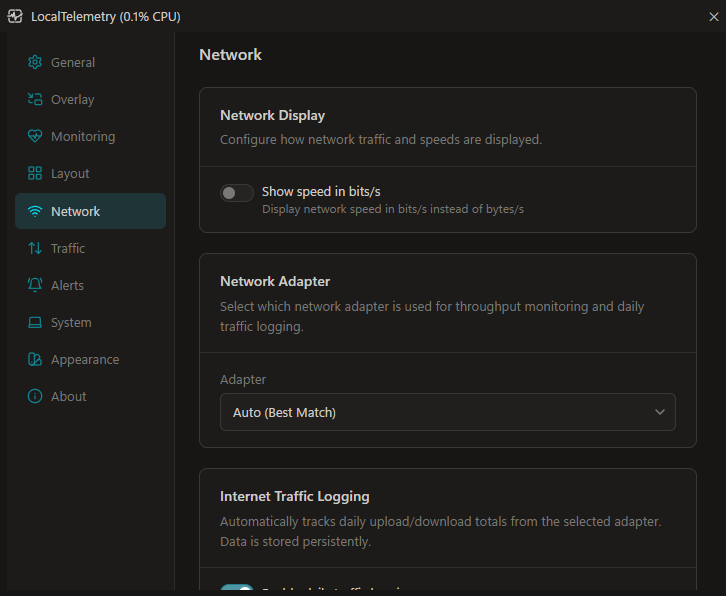 Network settings tab for selecting the preferred network adapter and enabling daily traffic logging.
Traffic
- Usage Calendar: View daily network download and upload totals on an interactive monthly calendar heatmap with 6 usage tiers.
- Filter by Adapter: Filter bandwidth totals dynamically for All or any individual network interface discovered in the month's records (such as Ethernet or Wi-Fi).
- Day Detail Breakdown: Click on any calendar day to inspect per-adapter upload and download volumes.
- Windows Network Usage Import: Backfill historical usage from Windows SRUM using date presets (
Last 7 Days,Last 14 Days,Last 30 Days) or customFrom/Todate pickers. - Traffic Database & Backup Import: Import native
internet_usage.jsonlbackups or external plaintext.datlogs into the database. - Persistent Storage: All historical records are saved locally in
internet_usage.jsonl.
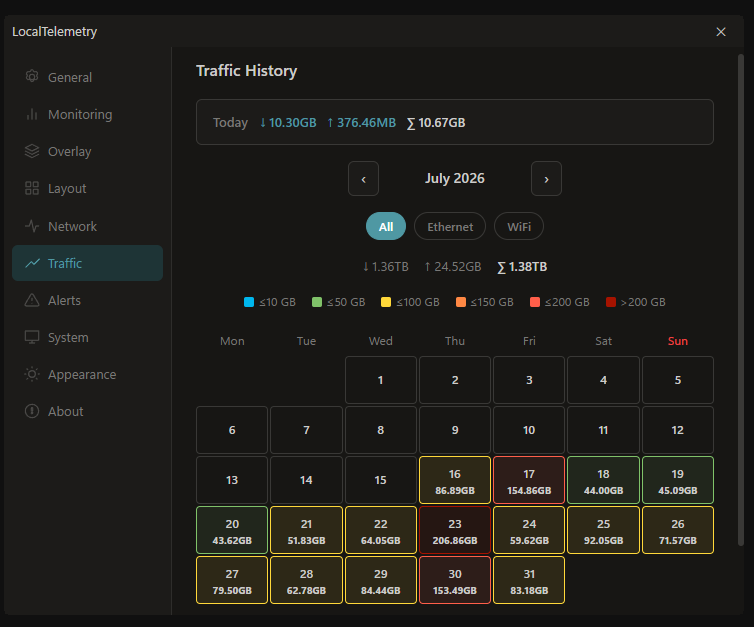 Traffic history calendar tab for tracking daily upload and download bandwidth.
Alerts
- Hardware Threshold Limits: Configure warning triggers for CPU (Usage %, Temp, Frequency throttling, Package Power), RAM (Usage %), GPU (Usage %, VRAM, Temp, Frequency throttling, Board Power), Network (Daily and Monthly bandwidth quotas), and Battery (Low charge %).
- Network Bandwidth Quotas: Set warnings for Daily Internet Usage (
5 GBto500 GB) and Monthly Internet Usage (100 GBto5000 GB). - Notification Channels: Enable desktop toast popups (Show Tray Notification) and in-place visual flashing on the taskbar overlay (Flash Overlay Briefly).
- Cooldown & Session Rules: Configure cooldown delay between alerts (
5 sto120 s, default:60 s) or enable Only fire once per session (ignores cooldown).
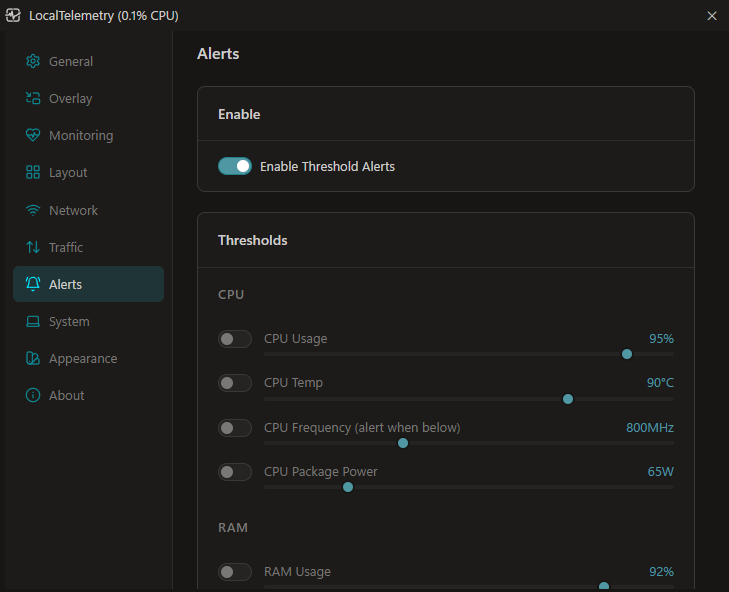 Alerts settings tab for defining temperature and resource threshold limits.
System
- Hardware Specs Overview: Displays a comprehensive diagnostic breakdown of detected system hardware organized into distinct component cards:
- System: Device Name (computer name), OS (Windows display version string), and System Type (
DesktoporLaptop). - Motherboard: System model name, Motherboard manufacturer and model, hardware version/revision, serial number, BIOS version, firmware boot mode (
UEFIorLegacy), and power supply information (PSU model and wattage rating on desktop PCs). - Processor (CPU): Processor model string, CPU vendor brand, physical core count, logical thread count, base clock frequency (GHz), maximum turbo boost frequency (GHz), socket designation (e.g.
Socket LGA 1700,Socket AM5), and thermal design power (TDP in Watts). - Memory (RAM): Total installed RAM (with usable capacity in GB), memory manufacturer, clock speed (e.g.
5600 MT/sor configured speed with rated SPD speed when different, such as4800 MT/s (rated 6000 MT/s)), memory generation type (e.g.DDR5,DDR4), number of populated module slots, and individual capacity and speed breakdown per module (Module 1,Module 2, etc.). - Graphics (GPU): Detected graphics cards labeled as
DedicatedorIntegrated, GPU model name, dedicated VRAM capacity (GB), installed driver version, and board TDP power limit (W). - Storage: Discovered physical drives indexed sequentially (
Disk 1,Disk 2, etc.) with a blueBootbadge for the OS drive, drive model name, storage capacity, and connection bus type ([NVMe],[SATA],[SCSI], or[DISK]). - Network: Discovered active network adapters (
Adaptername for each physical or virtual connection). - Battery (Laptops only): Detected battery manufacturer, device name / model identifier, factory designed capacity, current full charge capacity, battery health percentage, wear level percentage, and completed charge cycle count.
- System: Device Name (computer name), OS (Windows display version string), and System Type (
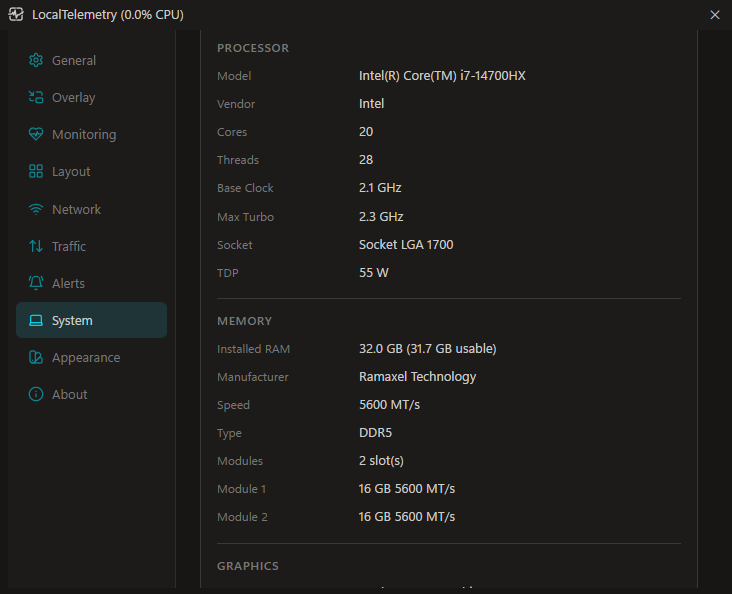 System information tab summarizing detected hardware specifications and driver versions.
Appearance
- Window Themes: Select from built-in curated dark and light theme presets for the configuration interface.
- Metric Color Customization: Set individual hex colors for each hardware metric (CPU, GPU, RAM, Disks, Network, Battery) using color pickers or hex inputs.
- Hardware Group Colors: Apply unified color overrides across entire component sensor groups.
- Follow Windows Theme: Synchronize overlay transparency key color and contrast with the active Windows theme.
- Reset All to Defaults: Reset metric colors back to the default vendor-detected color scheme.
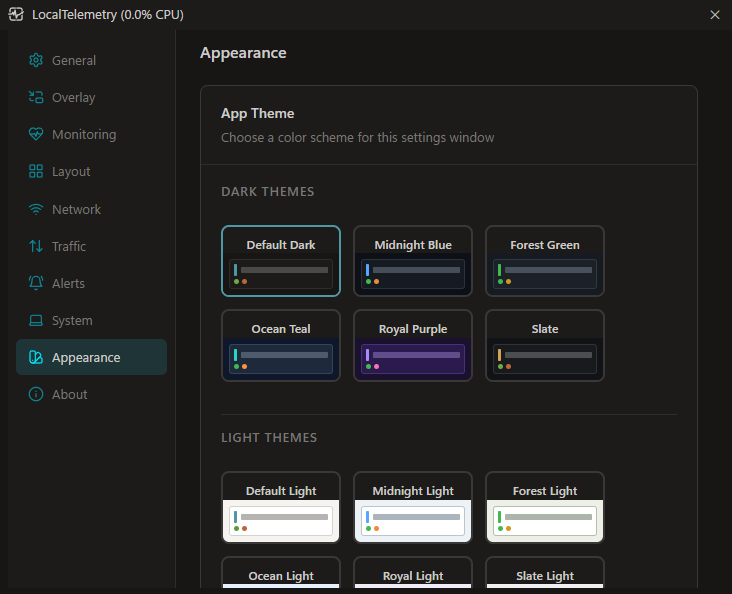 Appearance tab for customizing window themes, per-metric colors, and component group palettes.
About
- Software Updates: Check for newer releases via the GitHub Releases API on demand (Check for Updates button), configure update check frequency (Weekly, Monthly, or Manual), and toggle Include pre-release & RC builds (disabled by default). If an update is detected, a direct Download button links straight to the release.
- Application Metadata: Displays the active version (
vX.Y.Z), deployment mode (StandardvsPortable), build date, target runtime (.NET 10), and platform (Windows x64). - Application Directories: Single-click "→" buttons open the application folders directly in Windows File Explorer:
- Standard Mode: Quick access to the Installation Folder (
C:\Program Files\LocalTelemetry), Settings & Data Folder (%LOCALAPPDATA%\LocalTelemetry), and Logs Folder (%LOCALAPPDATA%\LocalTelemetry\logs). - Portable Mode: Direct access to the Portable Application Folder and the dedicated
logs\folder.
- Standard Mode: Quick access to the Installation Folder (
- Resources & Links: Quick shortcuts to report bugs on GitHub Issues, browse official releases, view online documentation, and read the GNU GPLv3 license.
- Third-Party Software & Licenses: Lists open-source runtime libraries and components (.NET Runtime, Svelte 5, Vite, Microsoft WebView2, PawnIo Driver, MinVer).
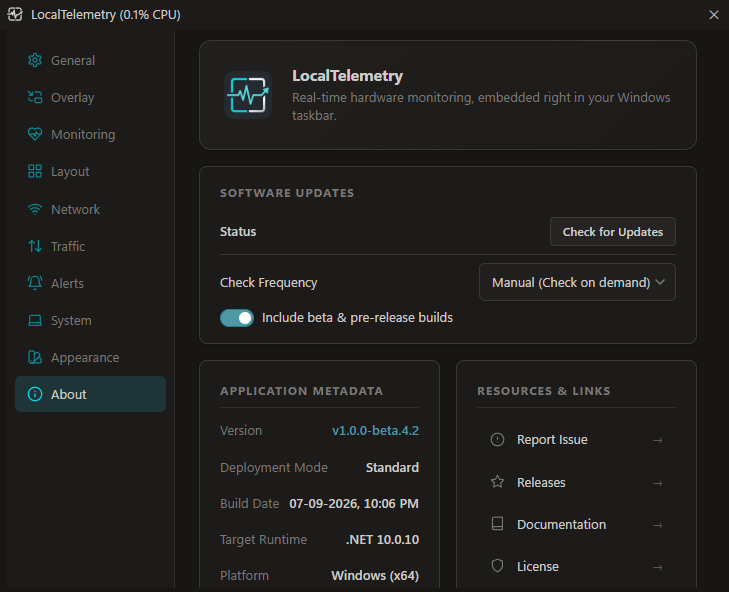 About tab for viewing application version details, update checks, application directories, and open-source licenses.
Technical Implementation
To inspect the Svelte 5 component architecture, JSON message contracts, and the bidirectional WebView2 host bridge, see the Frontend & WebView2 Architecture developer guide.