System Tray & Taskbar Overlay
LocalTelemetry features a dedicated Win32 integration engine that anchors real-time hardware telemetry directly on the Windows taskbar with zero desktop obstruction.
The Taskbar Overlay
The taskbar overlay is a borderless, transparent window positioned directly on your Windows taskbar.
 Default out-of-the-box taskbar overlay displaying 5 dual-row columns with automatic hardware vendor brand colors applied.
Core Overlay Architecture
- Adaptive 1-Row / 2-Row Column Grid: Metrics are rendered in an efficient columnar format (top metric and bottom metric per column) with aligned labels, colons, and dynamic value formatting. If configured with single metrics, the overlay automatically centers the single row vertically within the taskbar height.
- High-Performance GDI+ Rendering: Renders metrics with sub-pixel anti-aliasing and ClearType typography directly into a layered transparent buffer with minimal CPU overhead.
- DPI-Aware Scaling: Automatically detects and adapts to display scaling levels (100%, 125%, 150%, 175%, 200%, and multi-monitor mixed DPI setups).
- Automatic Theme Contrast & Key Color Sync: When Follow Windows Theme is enabled, a 2-second background timer detects Windows light/dark taskbar changes (
SystemUsesLightTheme). It dynamically synchronizes the overlay transparency key color (#f0f0f0for light theme,#1c1b19or custom hex for dark theme) and adjusts text luminosity for high-contrast legibility against any taskbar color. - Visual Alert Flash Effect: When any hardware metric crosses a critical threshold configured in Alerts, the overlay triggers an instantaneous translucent orange warning flash (
rgba(255, 80, 0, 0.24)) across the buffer to alert you visually without stealing window focus. - Taskbar Space Congestion Detection & Clamping: Measures available taskbar space between open apps and system widgets or notification area. If available width is narrower than the overlay, it clamps coordinates to prevent overlap and alerts in Settings.
- Hybrid Embedding Engine: Embeds as a native child window into the Windows taskbar shell, with an automatic fallback to a synchronized floating layered window if direct child embedding is restricted.
Default Metric Layout & Vendor Brand Colors
When you first launch LocalTelemetry, the overlay comes pre-configured with a balanced 5-column default layout designed to show the most critical performance metrics without overcrowding:
Default Column Breakdown
| Column | Top Row (Row 1) | Bottom Row (Row 2) | Default Sensor Pairing |
|---|---|---|---|
| Column 1 | cpu_pct (CPU Usage %) | cpu_temp (CPU Package Temp) | Processor Utilization & Thermal Status |
| Column 2 | gpu_pct (GPU Usage %) | gpu_temp (GPU Core Temp) | Graphics Core Load & Thermal Status |
| Column 3 | gpu_vram (GPU VRAM Used) | net_total (Session Total Traffic) | Video Memory & Cumulative Network Bandwidth |
| Column 4 | ram_pct (RAM Usage %) | ram_used (Active RAM in GB) | System Memory Percentage & Physical Usage |
| Column 5 | net_down (Download Speed DOWN↓) | net_up (Upload Speed UP↑) | Real-Time Network Ingress & Egress Throughput |
Automatic Hardware Brand Detection & Default Color Schemes
LocalTelemetry automatically inspects your hardware components at startup (SystemInfo) and assigns authentic vendor brand colors to the metric values:
| Hardware Category | Detected Manufacturer / Brand | Assigned Brand Color | Default Fallback Color |
|---|---|---|---|
| CPU Metrics | Intel, AMD | #0068B5 (Intel Blue), #ED1C24 (AMD Red) | #00E5FF (Cyan) |
| GPU Metrics | NVIDIA, AMD, Intel Arc | #76B900 (GeForce Green), #ED1C24 (Radeon Red), #0068B5 (Arc Blue) | #88CCFF (Sky Blue) |
| RAM (Memory) | Samsung, Crucial / Micron, Corsair, G.Skill, Kingston, SK Hynix | #1428A0 (Samsung Blue), #0068FF / #0033A0 (Crucial/Micron Blue), #FFE500 (Corsair Yellow), #ED1C23 (G.Skill Torch Red), #ED1A3B (Kingston Rex Red), #EA002C (SK Hynix Red) | #A78BFA (Soft Lavender) |
| Storage Disks | Samsung, Western Digital, Seagate, Crucial, Kioxia, Toshiba | #1428A0 (Samsung Blue), #005195 (WD Blue), #6EBE49 (Seagate Green), #0068FF (Crucial Blue), #00A4E4 (Kioxia Cyan), #FF0000 (Toshiba Red) | #AAAAAA (Neutral Gray) |
| Network (NIC) | Intel, Realtek, Qualcomm / Atheros, Broadcom, MediaTek, TP-Link / Killer | #0068B5 (Intel Blue), #006DB6 (Realtek Blue), #3253DC (Qualcomm Blue), #CC092F (Broadcom Red), #EC9430 (MediaTek Orange), #4AC7A3 / #E50000 (Teal / Killer Red) | Download: #38BDF8, Upload: #4ADE80, Total: #FBBF24 |
| Battery Metrics | Laptop OEM / Battery Mfr (Sunwoda, Simplo, Dynapack, BYD, LG, Panasonic, Lenovo, Dell, HP, ASUS, MSI, Razer) | Official OEM / Battery Brand Hex | #80E080 (Mint Green) |
TIP
You can customize any of these colors at any time in Settings -> Appearance, or click Reset All to Defaults to re-apply the automatic vendor color scheme. If your hardware manufacturer is not yet recognized or uses a fallback color, you can contribute official brand colors by following the Hardware Brand Color Contribution Guidelines.
Customized & Expanded Setups
Beyond the default 5-column layout, you can add, remove, and reorder metrics in Settings -> Layout to include active disk throughput, laptop battery status, CPU/GPU power consumption, and core clocks:
 Example of a customized taskbar overlay featuring active NVMe disk throughput (
NVMe1R, NVMe1W), battery telemetry, and custom column sequencing.
Mouse Controls & Interactions
Interacting with the Taskbar Overlay
To ensure reliable mouse interaction without Windows Explorer intercepting or misdirecting taskbar click events, LocalTelemetry uses an integrated low-level mouse monitor:
- Right-Click: Opens a quick-access context menu directly on the overlay rendered in modern Windows 11 dark mode with rounded corners. It features a non-clickable
LocalTelemetrystatus header, visibility toggle (Hide Overlay/Show Overlay),Open Settings, Task Manager, and an accent-red highlightedQuitoption (#FF453A). Clicking anywhere outside immediately dismisses the menu cleanly. - Double-Click: Triggers a customizable action configured in Settings (
None,Open Task Manager, orOpen Settings). Single left-clicks pass through safely to Windows to prevent accidental window moves.
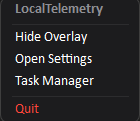 Quick-access context menu opened directly by right-clicking the taskbar overlay.
Interacting with the System Tray Icon
The notification area icon provides system-wide access to LocalTelemetry. If you prefer to run exclusively with the taskbar overlay, you can hide this icon at any time in Settings -> General by turning off Show System Tray Icon.
Lockout Safety Guard
You cannot disable both the System Tray Icon and the Taskbar Overlay at the same time. If one entry point is disabled, the settings interface disables the toggle for the other entry point. The application core also resets the tray icon to enabled if both are off in configuration.
When enabled:
- Left Single-Click: Ignored in accordance with Windows notification area guidelines to prevent accidental layout shifts.
- Hover: Displays a live tooltip summary showing current CPU, RAM, and GPU utilization (e.g.
CPU 7% RAM 50% GPU 0%).
 Live hardware summary tooltip displayed when hovering over the system tray icon.
- Double-Click: Immediately opens the Svelte 5 Settings dashboard.
- Right-Click: Opens the notification area context menu with the
LocalTelemetrytitle header, dynamic overlay toggle, settings access, and clean exit options:
| Overlay Visible | Overlay Hidden |
|---|---|
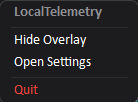 | 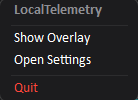 |
| Clicking Hide Overlay hides the taskbar window. | Clicking Show Overlay anchors the overlay back to the taskbar. |
- Hide Overlay / Show Overlay: Instantly toggles the taskbar overlay visibility on or off (the menu text dynamically updates according to overlay state).
- Open Settings: Launches the configuration window.
- Quit: Completely closes LocalTelemetry and unloads the overlay from the taskbar.
Configuring Overlay Settings
In the settings dashboard under the Overlay tab, you can customize layout, geometry, and interactions:
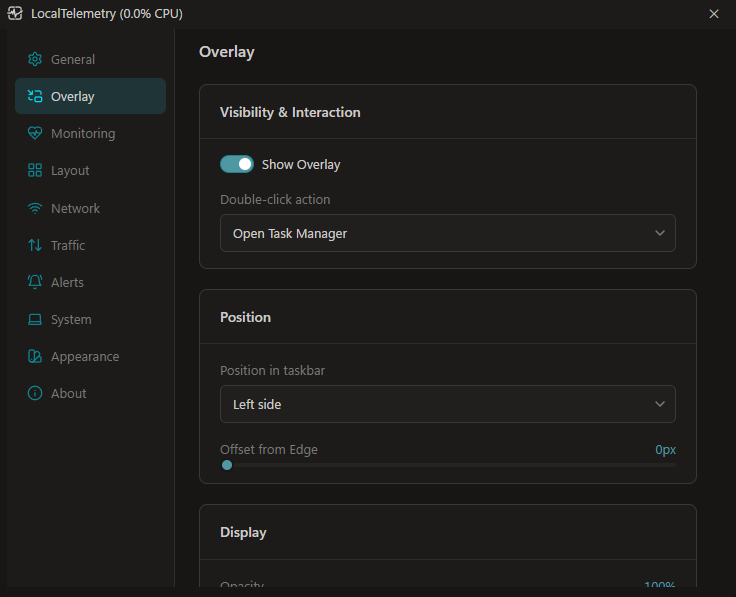 Overlay configuration tab in the Svelte 5 settings dashboard.
- Show Overlay: Master toggle to show or hide the taskbar overlay.
- Position in taskbar: LocalTelemetry automatically detects your Windows 11 taskbar alignment:
- Centered Taskbar Icons:
Left Side: Anchors the overlay to the left side of the taskbar, adjacent to the Widgets button.Right Side: Anchors the overlay to the right side, directly to the left of the system tray.
- Left-Aligned Taskbar Icons:
Next to Apps(beside_apps): Detects the right edge of running application icons. It places the overlay immediately after your last pinned or active app.Before System Tray(right): Anchors the overlay immediately to the left of the system notification area.- Fresh Setup Default: On left-aligned taskbars, fresh setups default to
Before System Trayto avoid overlapping pinned applications.
- Centered Taskbar Icons:
- Offset from Edge: Adjust horizontal pixel distance from the chosen taskbar anchor (
0pxto200px). - Opacity: Adjust overlay transparency from
20%to100%. - Scale: Adjust the display scale multiplier from
80%to200%. - Space Congestion Warning: When open taskbar application buttons squeeze available space, a warning banner appears with a one-click shortcut to Windows Taskbar Settings (
ms-settings:taskbar). - Double-Click Action: Configure what happens when double-clicking the overlay:
None: Disables double-click action.Open Task Manager: Launches Windows Task Manager.Open Settings: Launches the LocalTelemetry settings dashboard.
Multi-Monitor Behavior
LocalTelemetry anchors to your primary Windows taskbar. If you use multiple displays, the overlay sits seamlessly on your primary taskbar while secondary monitor taskbars remain clean and unobstructed.
Real-time display resolution changes and mixed-DPI transitions across monitors are tracked automatically, instantly scaling and repositioning the overlay without needing a restart.
Windows Explorer Restart Recovery
If Windows Explorer crashes or restarts (explorer.exe), taskbar child windows are destroyed by the operating system.
LocalTelemetry automatically recovers without requiring manual application restarts:
- 5-Second Heartbeat Watchdog: A background watchdog polls the Windows taskbar every 5 seconds. As soon as a new Explorer instance is detected, LocalTelemetry immediately re-embeds and redraws the overlay.
- 200ms Adaptive Repositioning: A fast background timer tracks taskbar dimension shifts, display resolution changes, and taskband resizing every 200 ms, keeping the overlay accurately aligned.
Technical Implementation
To inspect the Win32 P/Invoke window embedding mechanics, low-level mouse hooks (WH_MOUSE_LL), DWM attributes (DWMWCP_ROUND), and DPI message routing, see the Taskbar Overlay & Win32 Interop developer guide.